Search This Blog

Sunday, August 23, 2020

Axeleratio's Context Dictionary (AxCD) structure and application

Axeleratio uses a customizable format to flexibly integrate complex, diverse and context-interconnected data items and text snippets: the Axeleratio's Context Dictionary (AxCD) structure.

AxCD structure

The metalevel AxCD structure—as its name suggests—is a dictionary. The AxCD keys are names, terms or text phrases, which are of interest to be captured, looked up and also further processed. The AxCD content associated with a particular AxCD key is a list of lists. Each list consists of at least six fields:

  1. Identifier or reference: a secondary key or a reference code to cross-relate entries in AxCDs or identify a publication source. 
  2. Line dictionary: a lower level, programming-environment-independent dictionary representation of contextual data in line format with the advantage of allowing explorative sub-string search inside one string without iterating through a key-value pair structure.
  3. Associated interest: a word, code or text that compliments the AxCD key within the context domain of the AxCD.
  4. Descriptor 1: optional first descriptive symbol or notation charactarizing the interest entry.
  5. Descriptor 2: optional second descriptive symbol or notation characterizing the interest entry.
  6. Descriptor 3: optional third descriptive symbol or notation characterizing the interest entry.

We have found this type of structure convenient in the presentation of various collections of information such as data tables, vocabularies, glossaries, chronologies, directories, inventories, annotation notebooks and encyclopedic contributions. The AxCD format provides an excellent approach when domain-specific information needs to be presented while including items given by different names across various languages.


AxCD applications

In the following we give a few examples of how we use AxCDs to represent data. We use the dictionary data structure of the Python programming language. Our modules of wrapped, Python-encoded AxCDs are either manually entered or generated by export routines from databases and spreadsheet applications.


Chemical and biological materials notes.

'sea-silk': [ 

     ['HelenScales2015','',
            'The origins of sea-silk remain stubbornly mysterious, and no one knows for sure who first thought to pluck hairs from giant seashells and turn them into threads and fabric','q','153','axel'] 

]

The AxCD key is the name of a material. The identifier field contains the reference from which the following information was extracted,SMILES notation for this compound. The line dictionary is not used here. The interest field contains a quotation, followed by the letter q in the first descriptor field indicating that the text is a quotation. The second descriptor field provides the number of the page in the specified reference to retrieve the original text. The third descriptor provides a hint on who quoted the text.


Chemistry vocabulary English-German.

'aceto-acetic acid': [ 

     ['O=C(C)CC(=O)O','chemform:C4H6O3;CASRN:541-50-4;                IUPAC:3-oxobutanoic acid',
            'Acetessigsäure','f','-',''] 

]

The AxCD key is the Englsh name of a chemical compound. The identifier field contains the SMILES notation for this compound. The line dictionary encodes the chemical formula, the Chemical Abstract Service Registry Number and the name recommended by the International Union of Pure And Applied Chemistry (IUPAC). Then the German name for this compound is given followed by the grammatical gender of the noun (f for feminine), the genitive form (dash for none) and the plural form (empty for not applicable) .


Biology vocabulary English-German.

'American crocodile': [

    ['Crocodylus acutus','','Spitzkrokodil','n','-s','-e']

]

The AxCD key is the Englsh name of an animal species. The identifier field contains the scientific species names. The line dictionary field is empty. The German name for this species is followed by the grammatical gender of the noun (n for neutrum), the genitive form (ending in s) and the plural form (ending in e).


Conclusion and outlook

We use our currently available and frequently updated AxCDs in connection with other data collections and archives to generate novel dictionaries for customized client-desired search functions and to abstract knowledge for context- and task-specific requests.


Sunday, March 10, 2019

Curvilinear regression in R: a parabolic-model example

Simple linear regression (SLR) and multiple linear regression (MLR) analysis is frequently applied when modeling data. If your visual or statistical analysis during model building suggests
a relationship that is non-linear, you may want to try curvilinear modeling (polynomial modeling).
R programming for SLR,  MLR and curvilinear regression (CLR) analysis is very similar. CLR model building in R is done in four basis steps:
  1. Structure your data in a data frame, for example, via import from a CSV file.
  2. Calculate the desired powers for the independent variable(s) and add them to the data frame. 
  3. Derive the curvilinear model by using the lm() function.
  4. Review the results displayed with the summary() function.
In the case of a parabolic model (quadratic model), only square values need to be calculated and included in the data frame at step 2.

The derived model—if found to satisfactorily fit the data—can then be applied to estimate new values for the dependent variable (response values) by calling the predict() function, which needs to receive a data frame object with new values for the independent variables.

Find the tutorial-style documents and associated CSV files with example data for SLR, MLR and CLR modeling (parabolic modeling) with R in the following.

SLR modeling

Document: www.axeleratio.com/math/comp/linreg/linregways.pdf   
Data: www.axeleratio.com/math/comp/linreg/csv/woodward71.csv
 

MLR modeling

Document: www.axeleratio.com/math/comp/linreg/multilinreg.pdf   
Data: www.axeleratio.com/math/comp/linreg/csv/woodward82.csv

CLR modeling (parabolic modeling example)

Document: www.axeleratio.com/math/comp/linreg/curvilinreg.pdf   
Data:www.axeleratio.com/math/comp/linreg/csv/woodward83.csv


Example of curvilinear model building in R: details are given in my document “How to perform curvilinear regression analysis with R ”


Keywords: statictical analysis, linear modeling, non-linear modeling, machine learning, testing relationships, model building, R programming.

Tuesday, March 5, 2019

Multiple linear regression in the R software environment

Carrying out multiple linear regression (MLR) in the freely available R software environment is not very different from performing simple linear regression (SLR) in R. The same basic steps can be followed when working on a MLR problem:
  1. Structure your data in a data frame, for example, via import from a CSV file.
  2. Derive the linear model by using the lm() function.
  3. Review the results displayed with the summary() function.
The derived model can then be applied to estimate new values for the dependent variable (response values) by calling the predict() function, which needs to receive a data frame object with new values for the independent variables.

Data and code to get started with MLR in R:


CSV file with sample dataset at
www.axeleratio.com/math/comp/linreg/csv/woodward82.csv.

Tutorial-style document with title “How to perform multiple linear regression analysis with R” at
www.axeleratio.com/math/comp/linreg/multilinreg.pdf.

MLR in R using the woodward82.csv dataset as explained in the article “How to perform multiple linear regression analysis”

Wednesday, February 20, 2019

Simple linear regression with Python and R: Getting started

Linear modeling in R
Development of a linear model in R using physical property values of rubber samples. Explore the use of R for linear modeling in a detailed document.
Python and R are open-source programming languages. There is a large community of scientific software developers using Python and its NumPy and SciPy libraries. While Python is a general-purpose language, R programming mainly has its focus on statistical and predictive analysis. Both languages are currently popular choices in designing algorithms for big data problems and machine learning projects, but also are employed by researchers in diverse fields whenever the need arises for data fitting, complex calculations, simulations and modeling.

The evaluation of the the relationship between two variables is a frequently occurring task; for example, in calibrating measurement instruments and modeling experimental data. Here is a Getting Started document:  Simple linear regression with Python and R: three ways to begin with. Therein, linear modeling in Python and R is demonstrated and compared. You will learn how

  • to import CSV-formated data in Python and R ,
  • to use NumPy arrays in SLR computation,
  • to derive regression and correlation coefficients with SciPy's stats.linregress() function,
  • to use R's data.frame container with the lm() function to fit a linear model presenting your data.


Generation of scatter diagram in R
R instruction resulting into a scatter diagram for the rubber-sample data used in the linear model development
  
Keywords: linear regression, Python, R, statistical description, data analysis, machine learning.


Sunday, February 3, 2019

Threats or no threats? What is a harmful website?

The McAfee security scan is supposed to identify threats on and onto a computer [1]. Recently, I got a list of harmful websites, McAfee found after a scan. For example, the list included the following sites:


What does this mean? The last two sites in the list I don't recall visiting. The first two I visit frequently—like many of us do! So, I am not really expecting them to be a threat. Neither is my Trailingahead blog, hosted by Blogger, which is a Google service. 

I checked the URLs above with VirusTotal (www.virustotal.com/#/home/url). They came out clean. I didn't see flags or URL/domain blacklisting.

If McAfee finds a website it indicates as harmful, then—so goes the claim—the scanner has detected some evidence of misbehavior such as spamming, malware activity or a server problem [2]. But obviously this website-threat connection is not always true or, at least, not made transparent. There are people out there with the advice to ignore such “harmful website” warnings or even uninstall McAfee [3].

Now, I am not sure if this information was helpful? But I hope it was not harmful!


References


[1] Lynn Burbeck: How to Remove Threats Detected by McAdee. It Still Works. Link: https://itstillworks.com/remove-threats-detected-mcafee-8572308.html.
[2] What does it mean if McAfee scan finds an "issue" of "harmful website" for a site I visited in the past, but no other issues? Quora. Link: www.quora.com/What-does-it-mean-if-McAfee-scan-finds-an-issue-of-harmful-website-for-a-site-I-visited-in-the-past-but-no-other-issues.
[3] How do I get rid of a "Harmful Website" threat? Yahoo! Answers. Link: answers.yahoo.com/question/index?qid=20131218145638AA5JdP3.

Thursday, April 12, 2018

How to access PostgreSQL with Python: a chemistry example

PostgreSQL is an open-source database. How can you connect to your local PostgreSQL database and access data in PostgreSQL tables by scripting in Python? Answer: by using the Psycopg PostgreSQL adapter.

I herein demonstrate data extraction with an example solving a common task in chemistry: the calculation of the molar mass for a given molecular formula by retrieving atomic weights from a PostgreSQL table.

Let's begin with the atomic-weight table. We will use published standard atomic weights (DOI: dx.doi.org/10.1351/pac200678112051): Atomic Weights of the Elements 2005 (IUPAC Technical Report). We use the following implementation for table awe2005:

Column Type Constraints Comment or Description
id serial primary key
elem varchar(12) not null, UNIQUE Element name
symb varchar(3) not null, UNIQUE Element symbol
numb smallint not null, UNIQUE Element number
awr double precision
Atomic weight, rounded
awu varchar(20)
Atomic weight with uncertainty
footnotes varchar(5)
Footnotes
stbliso boolean
Stable isotope existence

You are welcome to download the atomic-weight table in CSV format—avalaible as awe2005.csv—and import it into your PostgreSQL database. In our demonstration, we only access values of the columns symb and awr from this table.

Now let's write the Python function calc_molar_mass that will calculate the molar mass for a molecular formula, which is passed as argument molform. This variable is a list of pairs. Each pair is a tuple containing an element symbol and its subscript. For example, the molecular formula for ascorbic acid, C6H8O6, would be passed as
molform = [('C',6), ('H',8), ('O',6)]
Function  calc_molar_mass needs to perform the following steps:
  • Connect with database
  • Extract atomic weight values and update molar mass
  • Close database
  • Return result


Begin communication with the database

To connect to an existing PostgreSQL database on a local computer, the database password and the name of the database that contains table awe2005 need to be provided (by replacing my_password and my_database, respectively):

  try:    
     conn = psycopg2.connect(database="my_database",
              user="postgres", password="my_password",
              host="127.0.0.1", port="5432")        
 except:
     print("NOT connected!")

     return {}
 cur = conn.cursor()


If the connection to the database cannot be established, an empty dictionary is returned; otherwise, a cursor is initialized to perform database operations. Then, you are all set to query table awe2005.

Use the cursor to obtain atomic weight values for given symbols 

Formulate the query, execute it and fetch the table row:

   query = "SELECT * FROM awe2005 WHERE symb = '%s'" % atsymb
   cur.execute(query)
   row = cur.fetchone()  


The string variable atsymb contains the atomic symbol, for which we want to obtain the atomic weight value. The latter is in column awr, which is column 4 (start counting with 0 in the above table and take the column number as field index for row):

   atweight = row[4]

The complete molar mass calculation requires a loop over all atomic symbol/subscript pairs:

   molmass = 0.0
   for pair in molform:
      atsymb    = pair[0]
      subscript = pair[1]
      query = "SELECT * FROM awe2005 WHERE symb = '%s'" % atsymb
      cur.execute(query)
      row = cur.fetchone()  
      if row is None:
         # unknown atomic symbol
      else:
         atweight = row[4]
         if atweight is None:
            # no atomic weight value for this symbol
         else:
            molmass += atweight * float(subscript)


The appendix contains an executable script that takes care of  those cases where a symbols or value is not found. The script can also be downloaded: molmass.py (right-click and use "Save link as..." option).  For a molecular formula input,  it generates a list of lines recording both successful and unsuccessful calculation steps. 

Close database

Close the communication with the database:

   cur.close()
   conn.close()


Depending on your script design, connecting with and disconnecting from the database may occur elsewhere—independent of the need in particular functions—and you will simply pass the cursor to database-accessing functions.

Appendix: Completing the script

The following is a complete script that displays the molar mass calculation step-by-step (for each atomic symbol) and reports the occurrence of unrecognized symbols and missing values:

import argparse
import psycopg2
#======================================================================#
# Calculate molar mass for given molecular formula                     #
#======================================================================#
def calc_molar_mass(molform):

   # Begin communication with the database
   dbname = 'my_database'
   try:     
      conn = psycopg2.connect(database=dbname,
                   user='postgres', password='my_password',
                   host='127.0.0.1', port='5432')         
   except:
      print('NOT connected to %s!' % dbname)
      return {}
   cur = conn.cursor()

   # Perform calculation of molar mass
   molmass = 0.0
   steps = []
   cntUnknownSymbols = 0
   cntMissingValues  = 0
   for pair  in molform:
      atsymb    = pair[0]
      subscript = pair[1]
      query = "SELECT * FROM awe2005 WHERE symb = '%s'" % atsymb
      cur.execute(query)
      row = cur.fetchone()  

      if row is None:
         cntUnknownSymbols += 1
         steps.append("            ?")
      else:
         atweight = row[4]
         if atweight is None:
            cntMissingValues += 1
            step = "            %-3s %6s            ?" %\
                                  (atsymb,subscript)
            steps.append(step)
         else:
            contribution = atweight * float(subscript)
            step = "            %-3s %6s %12s" % (atsymb,subscript,\
                                    "%.3f" % contribution)
            steps.append(step)
            molmass += contribution

   # End communication with the database
   cur.close()
   conn.close()

   # Finish by formatting report lines
   status = ':'
   resultline = ''
   if cntUnknownSymbols == 0 and cntMissingValues == 0:
      resultline = "Molar mass in g/mol:   %12s" % ("%.3f" % molmass)
   else:
      status = resultline = "Molar mass calculation failed:     "
   steps.append('-' * len(resultline))
   steps.append(resultline)
   if cntUnknownSymbols > 0:
      steps.append("Unknown symbols:%3i " % cntUnknownSymbols)
   if cntMissingValues > 0:
      steps.append("Missing values: %3i " % cntMissingValues)
   steps.append('-' * len(resultline))

   # Return results as dictioary with three entries
   mmdict = {'molmass': molmass, 'steps': steps, 'status': status}
   return mmdict


#======================================================================#
# Run molar mass calculation                                           #
#======================================================================#
if __name__ == '__main__':

   #===================================================================#
   # Get molecular formula from command line                           #
   #===================================================================#
   parser = argparse.ArgumentParser()
   parser.add_argument('entered', nargs='*')
   args = parser.parse_args()
   linearMolform = args.entered[0]

   #===================================================================#
   # Loop over atomic symbol/subscript pairs and calculate molar mass  #
   #===================================================================#
   tokens = linearMolform.split()
   molform = []
   i = 0
   previous = ''
   for token in tokens:
      i += 1
      if i % 2 == 0: # when even number of tokens, add symbol/value pair
                     # to molform
         molform.append((previous,token))
      else:
         previous = token # hold atomic symbol until next iteration step
   mmdict = calc_molar_mass(molform)

   #===================================================================#
   # Display results                                                   #
   #===================================================================#
   print('Result:')
   steps = mmdict['steps']
   for step in steps:
      print(step)


Get the script as file molmass.py (right-click and use "Save link as..." option).

Execution example: Run the script via command line submission 

   python.exe molmass.py "C 6 H 8 O 6"

to calculate the molar mass for the formula C6H8O6, which, for example, is the molecular formula of ascorbic acid with a molar mass of 176.12 g/mol.

The provided script was tested with Python 3.4.2 under Windows 10. The following screen snippet shows the script performance within a PowerShell window:


Sunday, November 19, 2017

How to fix the wrong-start-page-problem when occurring with Firefox browser

Recently, my Firefox browser always opened with a start page (or startup page) displaying content from a third-party provider I never had invited to do so.

I fixed this problem in three quick steps:
  1. Open the desired start page in sabotaged Firefox browser.
  2. Select and drag the URL string from the address bar to the Home button in the toolbar. 
  3. When asked “Do you want this document to be your new home page?”, click Yes.
Now, my desired start page comes up each time, when I launch Firefox.

Note: I experienced some confusion about the terms “home page” and “start(up) page” when consulting different tutorial or support websites. My understanding is that one may set one's home page as a browser start page, but does not have to. Personally, I like to have a search engine page as my browser start page; neither my home page nor a browser-enforced page.

Friday, November 10, 2017

Upgrading to pgAdmin 4 on Windows: issue with contacting the local server solved!

Recently, I upgraded to PostgreSQL 10 and pgAdmin 4 on Windows 10. When I started pgAdmin 4 from the All apps list in the Start menu, pgAdmin did not start as expected and a message was displayed that the PostgreSQL server could not be contacted!

How to fix that? Fortunately, it turned out to be easy. I inspected the AppData\Roaming\pgAdmin folder within my Windows user account home folder and realized that it contained various files and folders. After moving all of them into the Recycle Bin, I was able to restart pgAdmin successfully.

Maybe, data stored and dumped while working with a prior pgAdmin version interfere with version 4. Then, to avoid pgAdmin4 start-up errors has a simple one-step fix (the way it worked for me as described above):

Remove all files and folders from your AppData\Roaming\pgAdmin folder. This folder has the path

C:\Users\YourUserName\AppData\Roaming\pgAdmin

with YourUserName being—well—your user name. If you still want to switch back to an older pgAdmin version previously installed and run on your computer, you should keep the removed files in storage—just in case..

Thursday, June 1, 2017

How to tweet the URL of a web page successfully with a “Large Image Summary Card”

Example of a “Large Image Summary Card” for an HTML document featuring Meeks Creek Falls, a waterfall in California's Desolation Wilderness

On Twitter users tweet short text—microposts.

You want to enhance your tweet with an image? Post it along with your tweet (see Posting photos or GIFs on Twitter).

You want to enhance your tweet with an URL of an exciting web page plus an illustrating image?  Use Twitter Cards.

Frequently, I design an image page (photo page): a web page (HTML document) that contains an image annotated with some informative text. I like to include such pages in Twitter posts by presenting the targeted image with descriptive text—microannotation. This stirs up reader's curiosity and invites them to click through. To achieve this, I employ Twitter's “Large Image Summary Card” technology (see Summary Card with Large Image).

Here, I'll demonstrate how it works (how it worked for me, anyway).  Follow these straightforward steps:

1. Add specific HTML meta tags to your web page.
2. Run the URL of the page through Twitter's card validator tool.
3. Tweet the URL

As an example page, I am using my Meeks Creek Falls picture and page. I inserted the following metadata lines into the head section of the respective HTML document:

<meta name="twitter:card" content="summary_large_image"/>
<meta name="twitter:site" content="@TravelingAhead" />
<meta name="twitter:creator" content="@TravelingAhead" />
<meta name="twitter:title" content="Meeks Creek Falls" />
<meta name="twitter:description" content="White water tumbling, splashing and spraying downcreek between naturally sculptured rocks" />
<meta name="twitter:image" content="http://www.axeleratio.com/pic/waterfall/meekscreek/img/Meeks_Creek_Falls.jpg">
<meta name="twitter:image:alt" content="Meeks Creek Falls next to Tahoe-Yosemite Trail">

Then, the document was tested with the Card validator at https://cards-dev.twitter.com/validator. After pressing the Preview Card button, I got the following preview display including an info log indicating successful card mark-up:


I submitted the following message with link and hashtags via @TravelingAhead:

#TYT Refresh yourself on a Tahoe-Yosemite Trail outing http://www.axeleratio.com/pic/waterfall/meekscreek/meeks_creek_falls.htm #MeeksCreekFalls #DesolationWilderness #Waterfall
 
The tweet showed up in the feed (https://twitter.com/TravelingAhead/status/869294403973660672) as shown at the top of this post.

Keywords: microblogging, microdata, meta tags, image collecting, annotated image.

Saturday, March 4, 2017

How can I edit the PATH variable under Windows 10?

The PATH variable is an environment variable of an operating system. The value of this variable is a list of folder (directory) paths. These specified folders are the names of installation paths—also called system paths—of executable programs.

Here, we are interested in the accessibility of programs installed in Windows 10. The list of folder names is searched when a program is called from the Run dialog box, a Command Prompt or Powershell command line and also when requested by a running process. Thus, inclusion of a program's directory path in the PATH list enables a program launch by program name without typing or providing the complete path.

Updated Windows 10 versions now contain a PATH editor that facilitates modification, addition and deletion of path names. Using this editor infrequently, I am finding it difficult to memorize the step sequence to access it. In the following, I am sharing how to tab down to the PATH editing dialog:

  1. Right-click the Windows icon (Start button) and, from the pop-up menu, select System to open the System window.
  2. From the menu items on the left side of the basic computer information, click Advanced system settings to open the System Properties window.
  3. Click the Environment Variables... button to open the Environment Variables window containing a scrollable System variables pane.
  4. In the pane, double-click the line with the system variable Path to open the PATH Editor (with the heading Edit environment variable). 
In the editor, select a line with a given installation path. Click the Edit button to modify the path or the Delete button to remove the path. To add a new path, click the Browse... button to open a dialog that assists you in finding the folder path you want to add. No typing required! Leave the editor by clicking the OK button to save your changes.

Sunday, September 25, 2016

A hands-on OpenOffice™ Base introduction by example using some mineral data

A contribution by Axel Drefahl, axeleratio.com, September 25, 2016.

Apache OpenOffice™ is an open-source office suite including word processing, spreadsheet, presentation, graphics and database software [1]. Its database tool is called OpenOffice™ Base, shorter ooBase or simply Base. OpenOffice started out as an open-sourced version of  StarOffice (1985-1999) [2]. Later, the suite development fractured into the Apache OpenOffice project and the LibreOffice project.

Today, two separate office suites, which were built on the same original code, exist [3]. Both, OpenOffice and LibreOffice can be downloaded for free for Windows, Linux and Mac. The two projects share most of their code. Interfaces and feature are similar. Without going into any further detail of difference, we will here get started with OpenOffice to get a hands-on experience for a desk top database management system that save your data and metadata in a single file. If you are using Microsoft Access, you will find many similarities. Otherwise, learning ooBase provides the basic skills to continue with Access later—if you want to or need to. Data can be imported/exported both ways.  

You are going to learn how to handle the followings tasks:
  1. Table design  (table layout),
  2. Table creation (data entry),
  3. Relationship between tables,
  4. Building queries in design view,
  5. Export of data table via OpenOffice™ Calc.
The provided examples use data from mineralogy [4]. Here are the lessons:
  1. Exploring OpenOffice™ Base: an example involving rare-earth mineral data  
  2. Structuring rare-earth mineral data in an OpenOffice™ Base table
  3. Modifying the column layout of an existing OpenOffice™ Base table  
  4. Defining and creating relationships between OpenOffice™ Base tables  
  5. Creating a query in OpenOffice™ Base
  6. Combinatorial querying-with OpenOffice™ Base  
  7. Exporting an Openoffice™ Base table into a file with Comma Separated Values (CSV) format
Apache OpenOffice 4.1.1 was used on Window 10 to test the examples and create the sample files RareEarthMinerals_2tables.odb and RareEarthMinerals_query.odb.

It should go without saying that these lessons provide a quick start, but cover only a few selected features and capabilities of ooBase.


References and more to learn
[1] Apache OpenOffice™: Why should I use Apache OpenOffice? [www.openoffice.org/why/index.html].
[2] Wikipedia: OpenOffice.org [en.wikipedia.org/wiki/OpenOffice.org],
[3] How-To Geeks: OpenOffice vs. LibreOffice: What's the Difference and Which Should You Use?  [www.howtogeek.com/187663/openoffice-vs.-libreoffice-whats-the-difference-and-which-should-you-use/].
[4] Appendix of the contribution “Mineralogy of the Rare-Earth Elements” by F. P. Cesborn in: P. Möller, P. Černý and F. Saupé. Lanthanides, Tantalum and Niobium. Springer-Verlag, Berlin Heidelberg, Germany, 1989.

Saturday, September 24, 2016

Exporting an OpenOffice™ Base table into a file with Comma Separated Values (CSV) format

A contribution by Axel Drefahl, axeleratio.com, September 24, 2016.

This post continues my preceding OpenOffice™ Base (ooBase) lessons:
  1. Exploring OpenOffice™ Base: an example involving rare-earth mineral data  
  2. Structuring rare-earth mineral data in an OpenOffice™ Base table
  3. Modifying the column layout of an existing OpenOffice™ Base table  
  4. Defining and creating relationships between OpenOffice™ Base tables  
  5. Creating a query in OpenOffice™ Base
  6. Combinatorial querying-with OpenOffice™ Base 
A common database task is to export data into a plain-text file and adhering to a well-defined format such that the data can automatically be imported and resourced by other applications. In the following exercise we export our CesbronList into a CSV file:
  1. Open RareEarthMinerals_query.odb and click Tables in the Database pane bring the Tables pane in view.
  2. From the menu, select File > New > Spreadsheet to open an empty Calc sheet..
  3. In the Base window, right-click CesbronList and choose Copy from the context menu.
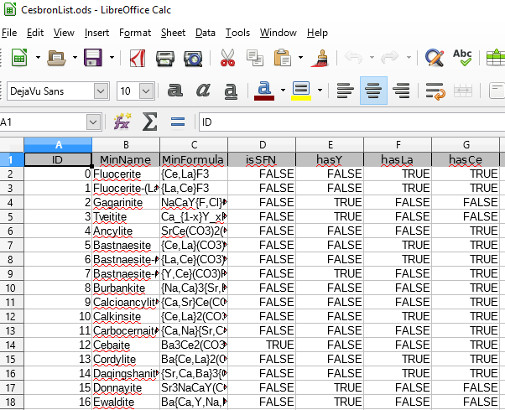
  4. In the Calc window, click cell A1 and Edit > Paste. The Base field names will show up as column headings in row 1 (cells A1 to U1) and the data will populate the cells of the rectangle with the diagonal-lined corners A2 and U168.
  5. In the Base window select File > Close to close RareEarthMinerals_query.odb.
  6. Continue with Calc. Select File > Save from the menu to save the imported data as CesbronList.ods (temporarily or longer,;you are the database administrator).
  7. Then, select File > Save As to open the dialog for outsourcing from OpenOffice™.
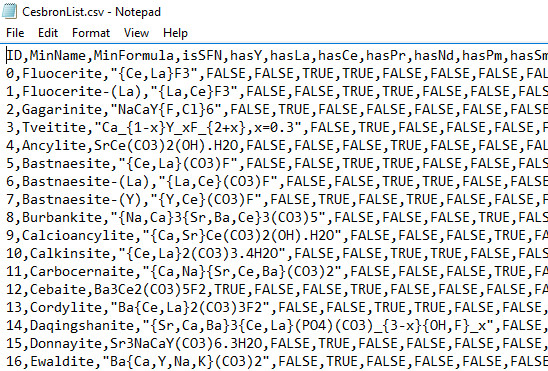
  8. Click the drop-down menu next to “Save as type” to view the export options. Select Text CSV (.csv)(*.csv) .
  9. Name the export file CesbronList.csv.
  10. Click Save to finalize the export.
CesbronList table exported into an OpenOffice Calc sheet

CesbronList table exported into a CSV file

As you certainly have noticed, the drop-down menu of the “Save as type” text field displayed a list of various export options, some of which you also may want to try. Have fun!

Friday, September 23, 2016

Combinatorial querying with OpenOffice™ Base

A contribution by Axel Drefahl, axeleratio.com, September 23, 2016.

This post continues my preceding OpenOffice™ Base (ooBase) lessons:
  1. Exploring OpenOffice™ Base: an example involving rare-earth mineral data  
  2. Structuring rare-earth mineral data in an OpenOffice™ Base table
  3. Modifying the column layout of an existing OpenOffice™ Base table  
  4. Defining and creating relationships between OpenOffice™ Base tables  
  5. Creating a query in OpenOffice™ Base
Now let's check out how we can customize ooBase queries. By combining query criteria you can filter database records in many ways to fit your specific interest. Continuing with the just designed query, we explore how to find minerals that contain a desired combination of rare-earth minerals (REEs):
  1. In the Queries pane right-click QueryByREE and then select Edit from the context menu to open the Query Design window showing your current design from the last lesson.
  2. Click into the empty cell next to the hasY cell in the Field row. From the selection list select CesbronList.hasLa.
  3. Repeat step 2 for all other fields that you want to include in the query: CesbronList.hasCe to CesbronList.hasLu.
  4. All cells of the Visible row show a check mark for field visibility in the Table Data View, which you may want to switch into when done with the query design. If you only expect to see the ID, mineral name and mineral formula, set the visibility to “No” by “clicking the check mark off.” 
  5. At this point, the only set Criterion you see is TRUE for hasY. Delete the TRUE value. To see the minerals that contain cerium (Ce) and neodymium (Nd), enter TRUE into the respective Criterion cells. 
  6. Click the Run Query Icon: the resulting table shows ten records with the minerals satisfying the query; including minerals that contain other REEs besides Ce and Nd (first picture below).
  7. To see only those minerals that contain Ce and Nd, but no other REEs, enter FALSE into all other REE Criterion cells.
  8. Again, click the Run Query Icon to see the four minerals satisfying the modified query (second picture below). 

Query result with records of minerals containing Ce, Nd and other REEs

Query result with records of minerals containing Ce and Nd and no other REEs

This example illustrated how to filter minerals of a desired REE combination. By leaving individual hasREE criterion cells empty or entering TRUE or FALSE, you can combinatorial filter minerals whether they certainly contain, certainly do not contain or may or may not contain a particular REE.

The ooBase file we have built up to now over six lessons is available as RareEarthMinerals_query.odb for testing and experimenting.

Thursday, September 22, 2016

Creating a query in OpenOffice™ Base

A contribution by Axel Drefahl, axeleratio.com, September 22, 2016.

This post continues my preceding OpenOffice™ Base (ooBase) lessons:
  1. Exploring OpenOffice™ Base: an example involving rare-earth mineral data  
  2. Structuring rare-earth mineral data in an OpenOffice™ Base table
  3. Modifying the column layout of an existing OpenOffice™ Base table  
  4. Defining and creating relationships between OpenOffice™ Base tables 
A query can answer specific questions about data stored in an ooBase application. Queries support you in maintaining and updating the database. You will consider using a query to review, filter and modify data as well as performing tasks such as calculations and report generation.

Running a query results in a table. Before running it, we need to create it. In the following example we use the ooBase Design View tool to create a query that selects all minerals from CesbronList that contain yttrium (Y):

  1. Open RareEarthMinerals_2tables.odb. If not yet done, create the relationship as shown in the previous lesson.
  2. Click Queries in the Database pane.
  3. In the Tasks pane, select Create Query in Design View... to open the Query Design window with the pop-up Add Table or Query dialog.
  4. Add CesbronList and Close the Add Table or Query dialog.
  5. From the appearing CesbronList field list, drag the names of those fields you want to include in your query into the cells of the Field row of the table in the lower section of the Query Design window: drag ID, MinName, MinFormula and hasY into the first, second, third and fourth Field cell, respectively. Notice that the first four Table cells indicate the source table, CesbronList, and the first four Visible cells include the Yes check mark.  
  6. To select all minerals with hasY set to Yes, click into the hasY cell of the Criterion row and enter TRUE.
  7. Click the Run Query Icon (or press F5 key). A table (view) with 74 records representing exactly those minerals that contain yttrium appears between the menu bar and the query design table.
  8. Open the Save As dialog by selecting File > Save from the menu in the Query Design window and enter QueryByREE as Query name, then press the OK button. Close the Query Design window.   
  9. In the Queries pane, double-click QueryByREE to open and review the Table Data View window with the mineral data for the Y-containing minerals.

OpenOffice Base Query Design window
Query Design window after running the query by pressing the Run Query Icon (fourth icon from right in the upper menu bar in the above cut-out section

You can come back to your query at any time to reset the query critera and to include not-yet-selected fields into your query. In the next lesson we are going to extend QueryByRee such that we are enabled to filter minerals by any desired combination of rare-earth elements. 

Saturday, September 17, 2016

Defining and creating relationships between OpenOffice™ Base tables

A contribution by Axel Drefahl, axeleratio.com, September 17, 2016.

This post continues my preceding OpenOffice™ Base (ooBase) lessons:
  1. Exploring OpenOffice™ Base: an example involving rare-earth mineral data  
  2. Structuring rare-earth mineral data in an OpenOffice™ Base table
  3. Modifying the column layout of an existing OpenOffice™ Base table 
We already defined a one-to-many relationship (one mineral class contains many minerals) by including a secondary key with field name MinClassID in the CesbronList table. This key points to a specific mineral class in the MineralClasses table. So far, this relationship exists in our (mental) blueprint. To create the relationship, we need to implement it into our ooBase application. This is achieved as follows:
  1. If not yet done, open RareEarthMinerals_2tables.odb and go to Tools >  Relationships... to open the Add Tables dialog.
  2. Add both tables, MineralClasses and CesbronList, into the empty space of the Relation Design window; then Close AddTables. 
  3. Put your mouse pointer on the MineralClasses.ID field, keep the left mouse button down, move the pointer over to CesbronList.MinClassID and release the mouse button. You should now see a 1-to-n line connecting the selected fields.
  4. Go to File > Save to conclude the relationship creation before closing the Relation Design window.
one-to-many relation between two OpenOffice Base tables
1-to-n connection between two tables

From now on you cannot put a value into a CesbronList.MinClassID cell which does not already appear in the MineralClasses.ID column: each mineral belongs to exactly one given class (within our design). If you enter a wrong value, you will receive a message stating an “Integrity constraint violation” error. Therefore, some experts recommend to implement relationships before starting to enter any data into the tables. But it is completely up to you in which order you proceed.


Thursday, September 15, 2016

Modifying the column layout of an existing OpenOffice™ Base table

A contribution by Axel Drefahl, axeleratio.com, September 15, 2016.


My recent posts “Exploring OpenOffice™ Base” and “Structuring rare-earth mineral data in an OpenOffice™ Base table” demonstrated how to get started with Open Office™ Base (ooBase) and create tables by developing them in design view and then entering data in spreadsheet view (data view).

Before you start defining relations between tables, you want to have their design (layout) being finished. In case you still want to add new columns (fields) to a table, you may will preferably append those to the existing ones before tying them up in relations.

There seems to be no way to directly insert columns between existing ones. Although column order (field order) does not matter structurally in a relational database, you may want a data-oriented column order in your spreadsheet view. This can be achieved indirectly by appending fields to an existing table, copying the table, rearranging its fields and then copying it back.

Let's walk through this by inserting a hasTi (for “has titanium”) column between hasLu and MinClassID in the CesbromList table. We use RareEarthMinerals_2tables.odb. Here are the steps:
  1. Open RareEarthMinerals_2tables.odb and click Tables in the left-side Database pane to open the Tables pane.
  2. In the Tables pane, right-click CesbronList to see the context menu: click Edit to open the table in design view.
  3. Add the Field Name hasTi with Field Type Yes/No [ Boolean ] into the first emoy row and Close the table.
  4. Back in the Tables pane, again right-click CesbronList, select Copy and then—still in the context menu—select Paste Special.
  5. In the Paste Special pop-up window select Data source table and press the OK button.
  6. In the opened Copy table window stay with the suggested table name CesbronList2 and with the option Definition and data and click Next>. 
  7. In the opened Apply columns dialog transfer the shown existing columns on the left to the right in the desired order and press the Create button when done.   
  8. In the Tables pane, right-click CesbronList and Delete it; then right-click CesbronList2 and Rename it to CesbronList. Voilà!


Sunday, September 11, 2016

Structuring rare-earth mineral data in an OpenOffice™ Base table

A contribution by Axel Drefahl, axeleratio.com, September 11, 2016.


My previous post “Exploring OpenOffice Base: an example involving rare-earth mineral data” demonstrated how to get started with OpenOffice™ Base (ooBase) and create a simple table. The table creation procedure is: (1) design the table in design view and (2) enter data in spreadsheet view (data view). If you are familiar with worksheets in spreadsheet applications, you know how to interact with an ooBase table. The interesting and useful development comes with table relations and task-specific table navigation to find data and synthesize information. The latter, however, depends on well-structured, resourceful data. Here, we “transfer” a table of  rare-earth mineral names associated with compositional formulas into an ooBase table we call CesbronList—named after F. P. Cesbron, who published this mineral/formula list as an appendix in a workshop contribution on rare-earth elements [1].

Designing the table CesbronList

We begin like we did with table MineralClasses by selecting Create Table in Design View… to open the Table Design window. Our first Field Name is MinName for the column of mineral names. The associated Field Type is Text [ VARCHAR ]. We stay with the default text length of 50, displayed in the Field Properties panel. The next Field Name is MinFormula, again with Field Type Text [ VARCHAR ]. In the Field Properties panel, we change the text length to 75 to make sure we have enough space for those long formulas with multiple subscripts and element-variation lists. These two columns would suffice to capture the mineral names and formulas of Cesbron's list. But we will include further columns to manage data handling based on mineral composition and mineral classification.

The third Field Name is isSFN with Field Type Yes/No [ BOOLEAN ]. This is a boolean descriptor indicating whether the given formula is compatible with the Stoichiometric Formula Notation (SFN) format or not. SFN-compatible formulas can be further processed with CurlySMILES-capable software [2].

The following 16 fields also are of Field Type Yes/No [ BOOLEAN ]. Their entries indicate whether the formula (and thus the mineral) contains a specific rare-earth element. The self-explanatory field names are: hasY, hasLa, hasCe, hasPr, hasNd, hasPm, hasSm, hasEu, hasGd, hasTb, hasDy, hasHo, hasEr, hasTm, hasYb and hasLu.

Finally, the last Field Name is MinClassID with Field Type Integer [ INTEGER ]. The MinClassID column contains secondary keys; each one matching one in the primary key column of table MineralClasses to refer to the mineral class of the respective mineral..

Unless you haven't done so by adding the fields, you now want to change Entry required from No to Yes for each boolean field to make real boolean; other wise you would have No or Yes or unspecified. Click into each Field Type cell and change to Yes in the Field Properties panel. You probably want to do the same for some other fields such as MinName, but not for those fields with a possibility to be left empty during initial data entry but to be updated at a later data-entry stage.

The table design is complete. Under the File menu, select Save, name the table CesbronList and press OK. Again, create a primary key with AutoValue Yes. Close the Table Design window.

Creating the table CesbronList

Now we need to fill in the data. The steps are:
  1. Click Tables in the Database panel,
  2. Open CesbronList drom the Tables panel,
  3. Enter your data,
  4. Select Close from File menu and press Yes if asked to save changes.   
You don't need to enter the data yourself. Instead, you can download a version containing the two tables MineralClasses and CesbronList.

Downloadable version: www.axeleratio.com/gems/db/REE/try/RareEarthMinerals_2tables.odb.

Use this version as a test base and starting point for the following steps in developing your rare-earth mineral database. 

A section of table CesbronList

Keywords: open source, ooBase, table design, design view, spreadsheet view, primary key, secondary key, field properties.

References
[1] “Mineralogy of the Rare-Earth Elements” by F. P. Cesborn in: P. Möller, P. Černý and F. Saupé. Lanthanides, Tantalum and Niobium. Springer-Verlag, Berlin Heidelberg, Germany, 1989.
[2] Axel Drefahl: CurlySMILES: a chemical language to customize and annotate encodings of molecular and nanodevice structures. Journal of Cheminformatics 2011, 3:1.
DOI: 10.1186/1758-2946-3-1.

Thursday, September 8, 2016

Exploring OpenOffice™ Base: an example involving rare-earth mineral data

A contribution by Axel Drefahl, axeleratio.com, September 8, 2016.


Apache OpenOffice™ 4.x versions come with a desktop database management system. OpenOffice Base, ooBase for short, is a free alternative to the Microsoft Access database [1]. I recently started to give ooBase a try. My test data were selected from the mineralogy of rare-earth elements (REE) and their compounds. 

With ooBase one can create relational databases—each application completely contained in one file. Design, testing and use of an ooBase application involves working with tables, queries, forms and reports. You typically will build and update tables, define relations between tables and then customize your application by adding queries, forms and report generating tools.

Herein, and in some following posts, I am going to share the initial development of my REE ooBase project, hoping that it will be helpful to others beginning with ooBase and that I can gain useful insight into ooBase's integrability and compatibility with other database systems—and existing chemical & mineralogical database applications and services, in particular.

I am continuing in the you and we form in present tense—also in the imperative mood—to engage the readers and followers of this project. The approach is to provide a tutorial-type experience—although the given REE ooBase example leans on my personal interest. The following typographical conventions are used to distinguish text and tools within the ooBase interface:

  • Title of a window, section or panel in bold blue: Database Wizard,
  • To be clicked text or button in bold black with gray background: Database,
  • Text requesting a user decision in bold red: What do you want to do?,
  • Text of a selection to be made in bold green: Create a new database, 
  • Text to be entered in bold purple: MineralClass,
  • File name in bold Courier:  RareEarthMinerals.odb,
  • Menu name in Courier: Help.
 

Let's get started! 

To create a new application, start Database in the start-up menu of your OpenOffice™ suite. Under What do you want to do? in the Database Wizard window select Create a new database, then press Next>>.in the bottom row of the window. Asked how to proceed after saving the database, stay with the default options Yes, register the database for me options and Open the database for editing, as shown below.

Default settings in creating an OpenOffice Database application

Select Finish. When the Save As window appears, type the name of your database. In our example, the file name is RareEarthMinerals.odb. Press Save to get the main ooBase window with the Database, Tasks and Tables areas.

Let's make the table MineralClasses

In the Tasks panel, select Create Table in Design View… to open the Table Design window. Now you are ready to design your first table. It will contain the names of mineral classes. Type MineralClass as the first field name and select Text [ VARCHAR ] as Field Type. The second Field Name will be Notes, also with Text [ VARCHAR ] as Field Type. The field names will show up as column headings, once data are entered in spreadsheet view (data view).  At the bottom of the window, you have the choice to change default settings for the field values. Here, we keep the default settings.

Design view of an ooBase table
Design view of an OpenOffice Database table

Under the File menu, select Save. You will be asked to name the table. Name it MineralClasses and press OK. The No primary key message box should appear, asking Should a primary key be created now? Every table requires a primary key column! Anwer with Yes to create a primary key. Now your first Field Name is ID, having Field Type Integer [ INTEGER ]. In the Field Properties panel, switch the AutoValue from No to Yes and close the Table Design window.

Next we populate table MineralClasses as shown below. Click Tables in the Database panel and then select MineralClasses in the Tables panel to open your table in spreadsheet view. We only fill in the MineralClass column.

Spreadsheet view of an OpenOffice Database table with 11 rows

Since we activated AutoValue, a primary key is automatically enter into the ID field when we finish its row. We leave the fields of the Notes column blank, but may want to come back later to enter mineral class details. 

The primary keys will serve as secondary keys or foreign keys in the next table we are going to create. This table contains the names and associated formulas, rare-earth minerals and some boolean descriptors of rare-earth minerals. Mineral names and formulas are taken from the literature [2]. The mineral class of each mineral is referenced by using the primary key in the table we just created.

Once the two-table database has been finished, we will be able to query it; for example, to look up the REEs a given mineral contains or to find all minerals that contain a given REE (or a given REE combination). Search results may then be arranged by mineral class as well as other criteria.  

Keywords: open source, ooBase, table design, design view, spreadsheet view, primary key, AutoField.

References
[1] Apache OpenOffice Base: https://www.openoffice.org/product/base.html.
[2] Appendix of the contribution “Mineralogy of the Rare-Earth Elements” by F. P. Cesborn in: P. Möller, P. Černý and F. Saupé. Lanthanides, Tantalum and Niobium. Springer-Verlag, Berlin Heidelberg, Germany, 1989.